

Businesses waste massive amounts of time on messy document workflows. Plenty of studies back this up, but here’s one from Adobe Acrobat that really hits home: nearly half of all employees (48%) struggle to find specific documents quickly, and over a third (36%) can’t even remember where those documents are stored.
They struggle to do the basics and that costs time and resources.
Such inefficiency can cost money and will chip away at client trust for firms like accountants, lawyers, finance pros, web designers, and anyone else who handles sensitive documents daily.
That’s why choosing the right file-sharing software really matters. In this post, we’ll walk you through the best file-sharing tools for professionals.
Content Snare: Best overall for secure and organized client file-sharing

Content Snare is built to make it ridiculously easy for professionals to collect and share files with clients, without the endless back-and-forth or the chaos of shared folders. Content Snare does the basics for you and gives you a guided workflow that helps clients get things right the first time. This begins to build trust with your valued clients and customers from the very beginning.
What really sets Content Snare apart is how “client-proof” it feels. Your clients don’t need an account, they get clear instructions, and the interface is simple enough that even your grandma who may not be not super tech savvy knows exactly where to click how and how to use Content Snare.
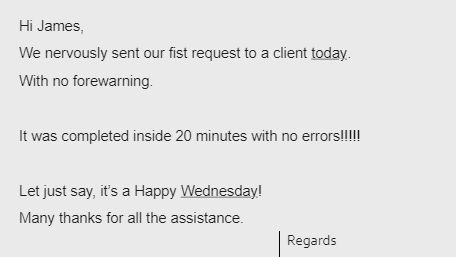
Here’s how one user described their first Content Snare experience:
We have loads of similar customer stories, but let’s explain some of the key features that make Content Snare so suitable for business professionals:
- Client portal for sending and receiving files: Each client gets their own secure space with organized client portal groups that function like categorized folders.
- All sorts of file types supported: Client file uploads are unrestricted.
- Large file uploads: Your client can upload files up to 16GB each (with 20MB per file on a free trial).
- Military-grade security: Multiple security mechanisms plus ISO 27001 certification to protect sensitive client data.
- Simple file search: Content Snare makes it easy to search and filter files by request status, owner, or client.
- Guided workflows clients won’t mess up: Auto-save, no login required, and a step-by-step experience that practically eliminates mistakes.
Content Snare is a file-sharing tool and a complete document collection system designed to save you time and keep projects moving. A recent survey shows that Content Snare users spend 71% less time gathering information and see a 67% reduction in stalled projects.
This may all sound like numbers so if you want to see the difference for yourself, you can try Content Snare free for 14 days and experience how much smoother client file collection can be. We know this will save you time, money and will put you in a good standing with all of your customers and valued clients.
Other file-sharing tools worth considering
Though Content Snare is a powerful tool for collecting documents from clients, some professionals may still prefer sticking with tools they already know. For instance, you might already be used to the feel of Dropbox, or your team lives inside the Google ecosystem. There’s nothing wrong with that: sometimes you just want to stick to the platforms you’re familiar with.
That’s why we’ll discuss a few more file-sharing tools so you can compare your options and choose what fits your workflow best.
WeTransfer: Best free option for occasional users
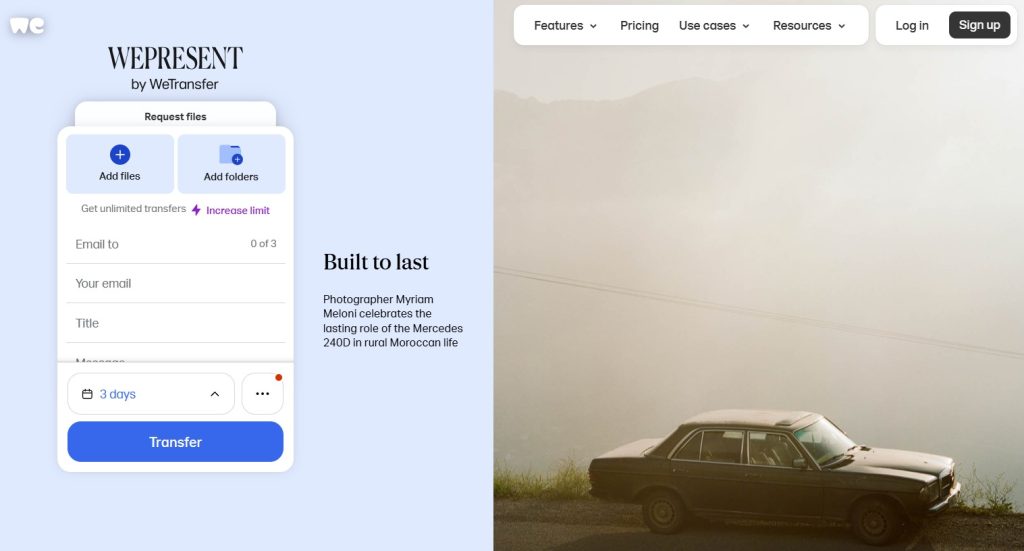
WeTransfer is a no-frills choice if you only need to send a few files now and then. This platform is built for simplicity: drag, drop, send, done. Key WeTransfer features include:
- A completely free tier for basic file transfers
- Paid plans with higher storage and premium options
- No transfer limits for paid plans
- Automatic malware scanning on paid accounts to keep downloads safer
On the other hand, WeTransfer comes with some real constraints for professional teams. The free version only lets you share and receive up to 3GB per month, with just 10 transfers allowed and file links expiring in as little as 3 days. The link-based experience can also be confusing for clients because most links will expire before your clients even have the chance to check them.
One more thing to notice here: link-based sharing isn’t ideal for sensitive documents because links can be forwarded or accessed by the wrong person.
Related: Secure file sharing with clients: what are your options?
Dropbox: A familiar choice with limitations for structured file requests

Dropbox is one of the most recognizable names in cloud storage, and for many teams it’s already part of their day-to-day toolkit. It’s a good option for internal collaboration and keeping your team’s documents in one shared environment. What Dropbox does well:
- Easy folder sharing for internal teams
- Reliable syncing across computers and mobile devices
- Integrations with tools like Microsoft 365, Slack, and Notion
- Straightforward file previewing for common file types
- Decent commenting tools for basic feedback
While Dropbox works nicely for general storage, it falls short when you’re collecting files from clients in a structured way. For one, Dropbox file requests provide no automated reminders and no guided instructions that make it easier for your clients to deliver the right documents.
The biggest drawback, though, is how manual the approval process becomes. You can leave comments on the files clients upload, but there’s no simple “approve” or “reject” button. If a client sends the wrong document, you’re stuck leaving a comment and crossing your fingers that they notice Dropbox’s automated email, or you end up chasing them manually.
OneDrive: A strong choice for teams already in the Microsoft ecosystem
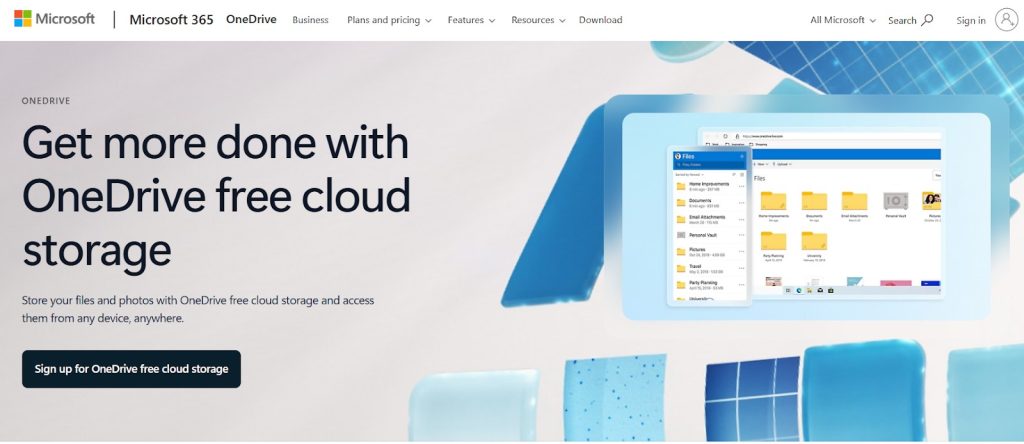
If your business runs on Microsoft 365, OneDrive fits right in. It’s tightly integrated with Outlook, Teams, SharePoint, and Office apps, which makes it a convenient option for internal file storage and collaboration. That built-in familiarity is a big win for many businesses because everything syncs across devices without much setup. Here’s an overview of OneDrive’s key features:
- Frictionless integration with Microsoft 365 tools
- Easy internal sharing for teams using Outlook or Teams
- Strong version history and file recovery options
- Solid security backed by Microsoft’s enterprise-grade infrastructure
- Reliable syncing across desktops and mobile devices
Where OneDrive file requests begin to show their limits is when you try to use them for structured client file collection. For instance, there’s no built-in checklist to track which documents clients have submitted, and you can’t guide them step-by-step through what they need to upload.
In addition, follow-ups also become manual because you need to send reminder emails yourself and then hope clients open your links, and manage everything outside the system. This can quickly turn into a huge pile of emails and attachments, particularly for firms handling many clients simultaneously.
Google Drive: Popular and convenient for teams in the Google ecosystem
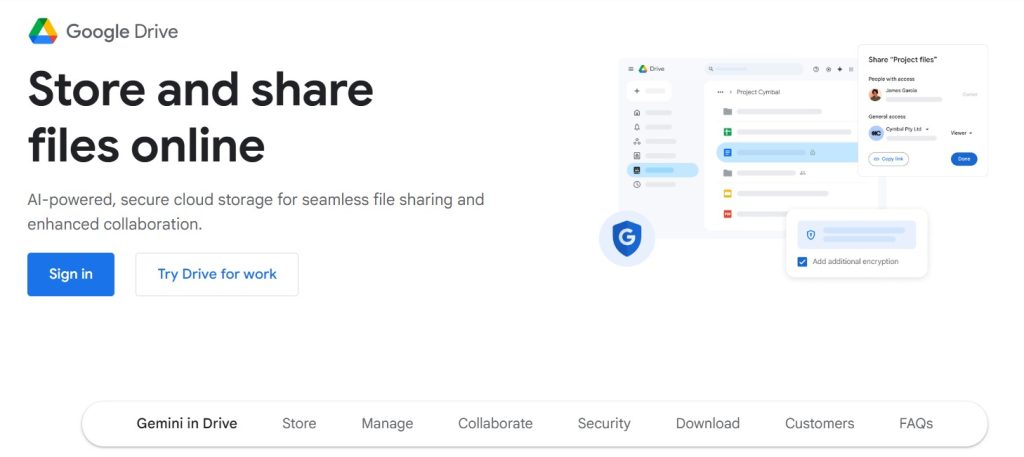
Google Workspace hosts over 3 billion users, so it’s fair to assume that many businesses will first think about using Google Drive as a file-sharing tool. It’s one of the most popular cloud storage platforms, and for internal collaboration it does a decent job. The following features make Google Drive particularly useful:
- It fits naturally into the Google Workspace stack (Gmail, Docs, Sheets, Meet, etc.)
- Easy internal sharing and collaboration for teams already using Google tools
- Real-time editing and commenting on documents, spreadsheets, and presentations
- Basic sharing controls and link-based access for simple file distribution
- Widespread familiarity, as most clients will at least recognize a Google Drive link
On the downside, the system often starts to creak if you rely on Google Drive file requests as your main intake method. Like most shared-folder setups, it’s not very user-friendly for clients: navigation can be confusing, and it’s easy for them to drop files in the wrong place. On top of that, clients need a Google account to upload files into shared folders, which can be a real barrier for less tech-savvy people or those who don’t want to sign in.
Google Drive offers encryption and access controls for general business use, but it’s not purpose-built for regulated industries that need detailed audit trails, granular per-document permissions, or workflows aligned with specific security standards.
Enjoy secure file-sharing with Content Snare
Content Snare gives your clients one simple, guided place to upload exactly what you need with automatic reminders, secure access, and no accounts required.
Stop chasing clients for files and save yourself time → Start your free trial
Make your file-sharing workflow as simple as possible
Finding the right file-sharing setup is ultimately about choosing a system that fits the way your team operates. Some tools shine when you’re already deep in their ecosystem, while others are built for quick, lightweight exchanges or broad internal collaboration. The key thing is knowing what level of structure, clarity, and security your work actually requires.
Once you understand how your clients prefer to communicate, which file types you regularly handle, and how much oversight your process needs, it becomes much easier to decide which platform supports your daily operations rather than slowing them down. In the end, the best tool is the one that helps you move through your workload with confidence and keeps your clients feeling supported every step of the way.
Ready to upgrade from shared folders and email attachments?
Content Snare helps professionals send structured requests, collect large files securely, and keep every project moving without follow-ups.
Start your free trial today and experience a smoother, more secure file-sharing workflow with Content Snare.
FAQ
What should professionals look for in a secure file-sharing tool?
Professionals should look for strong security and the ability to control access. In addition, find a platform that supports large files and features a simple experience your clients won’t get confused by. The point is to find a file-sharing portal that makes your workflow easier.
How does Content Snare make client file collection easier?
Content Snare makes client file collection easier because it guides clients step-by-step with simple instructions and embedded examples. Besides that, there’s the auto-save feature, so your clients can pick up where they left off. On your side, everything stays organized in one secure location, with search and filters that make documents easy to find.
Are traditional file-sharing links safe enough for sensitive client documents?
Traditional file-sharing links are usually fine for basic use, but not ideal for confidential financials, legal documents, or onboarding data. Public or unencrypted links can be forwarded or give people access you didn’t intend, which is why many professional firms choose purpose-built portals instead.
Can clients upload large or multiple file types into Content Snare?
Yes, Content Snare supports dozens of file formats and allows uploads up to 16GB per file, making it perfect for things like high-resolution images, spreadsheets, videos, and PDFs. Even the free trial lets clients upload files up to 20MB with no account required.
Deixe um comentário